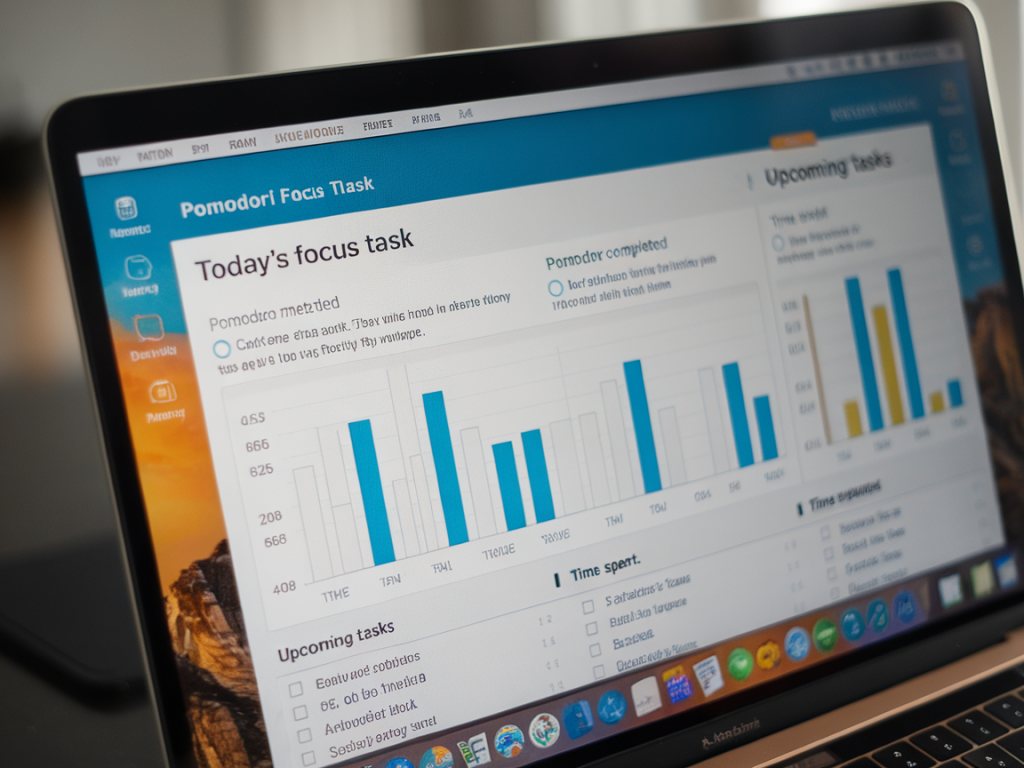
I’ve been sketching one‑page productivity dashboards in Notion for years, trying to land on a layout that keeps creative work front and center without becoming a project-management monster. The sweet spot for me is a single Notion page that combines a focused task list, a lightweight Pomodoro tracker, and a few metrics I actually care about—hours focused, pomodoro counts, and a simple trend I can glance at each morning.
Below I’ll walk you through how I build that exact one‑page Notion template: the databases, properties, views, and tiny automations that make tracking creative focus feel effortless instead of like extra work. This is practical and opinionated—designed for makers, designers, and anyone who needs long, deep sessions to ship good work.
What this page does and why it’s one page
My goal is to reduce context switching. Everything you need to plan a focused session and log progress lives on one screen:
Keeping it one page matters: when I’m in a creative flow I don’t want to open multiple databases, toggle through dashboards, or patch together spreadsheets. One page reduces friction and acts as a daily ritual: open it, review tasks, start a pomodoro, close distractions, and record a single line of feedback after each session.
Core databases and properties
I use two small databases on the page:
Tasks is your to‑do list with planning info. Sessions is the lightweight log each time you run a Pomodoro or a focused block. Key is that Sessions rolls up into Tasks so you can see how many pomodoros a task actually consumed.
Essential properties for Tasks:
Essential properties for Sessions:
That relationship lets Tasks show how many pomodoros have been logged against them, and Sessions provide the raw metrics we’ll aggregate.
Useful formulas and rollups
I keep formulas tiny and human. The two I use the most:
<formula example>: if(prop("Est. Pomodoros") == 0, 0, round(prop("Pomodoros Done") / prop("Est. Pomodoros") * 100))
<formula example>: if(prop("Est. Pomodoros") == 0, "—", slice("▓▓▓▓▓", 0, floor(prop("Pomodoros Done") / prop("Est. Pomodoros") * 5)))
Rollups on the Tasks table:
These rollups are the backbone for the small analytics blocks we’ll add next.
Page layout and views
Structure the page vertically with clear sections. I use:
Important views to create in Tasks:
In Sessions, create a default view sorted by Date (newest first) and a Weekly rollup view filtered to the last 7 days (useful for trends).
Pomodoro integration: simple vs automated
You don’t need complicated integrations. Here are three levels:
I personally use the semi‑automated approach: a "Start Pomodoro" template button that opens a Sessions row for the current task. I try not to over‑engineer—logging is also a reflective act that reinforces learning.
Mini analytics you can add
Analytics should be lightweight and actionable. I include three small blocks on the page:
You can display a mini table or cards showing the last 5 sessions and their Quality values. If you prefer charts, export a weekly CSV from Notion or sync Sessions to Google Sheets and build a sparkline chart that you embed back into the page.
Session notes and quick reflection
At the end of each focused block I add a one‑line reflection in Sessions: what I shipped, what blocked me, and one improvement for next time. Over a week those micro reflections become actionable patterns—are meetings killing my mornings? Do I do my best design work in 90‑minute stretches?
Create a template in Sessions that prompts for:
Tips to keep the template useful
If you want, I can generate a Notion page export with the exact fields and template buttons described here, or a short automation recipe using Make/Zapier to create Sessions from an external timer. Tell me which level of integration you prefer and I’ll prepare the configuration you can paste into Notion.