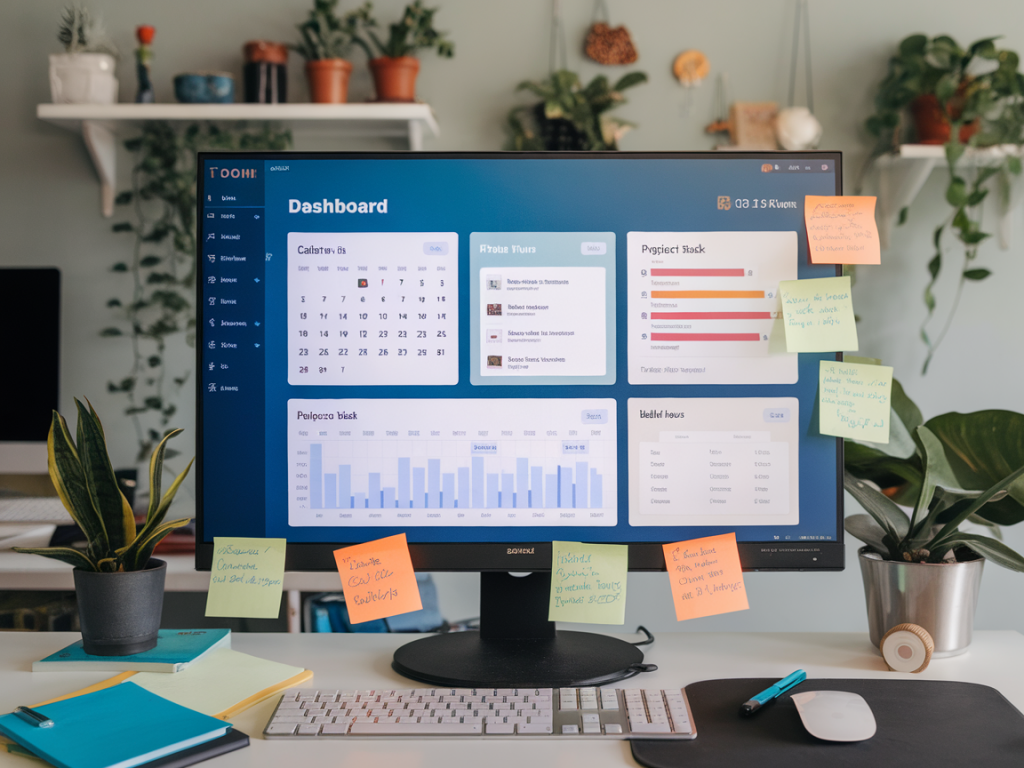
I build Notion dashboards constantly for myself and for readers—tiny control centers that turn scattered notes, invoices, and timers into something that actually moves work forward. For freelance creatives, the sweet spot is a dashboard that shows where every project sits in its lifecycle, what’s blocking progress, and whether the hours you’re logging are actually billable. In this walkthrough I’ll show the structure I use, the exact databases and properties, useful formulas, and simple automations that keep everything honest without adding busywork.
Why a Notion dashboard (and what it solves)
As a designer and writer I juggle concept work, client reviews, and admin tasks. I used to have separate tools for time tracking, Kanban boards, and invoices, and that split view meant I was always reconciling. Building a single Notion dashboard gave me: a live view of project lifecycle stages, a way to capture blockers in context, and a reliable way to collate billable hours into invoices.
Notion is not the fastest time tracker, but it’s the best place to connect project data: one place to see status, linked tasks, timers, and totals. You can keep using Toggl/Clockify and surface their data in Notion, or build a simple time-entry database inside Notion and export totals for invoicing.
Dashboard overview: the building blocks
My dashboard is composed of three core databases plus a Dashboard page that pulls views together:
- Projects — one row per project; this is the project lifecycle center.
- Tasks — granular tasks, each linked to a Project; tasks record blockers and time estimates.
- Time Entries — each time entry references a Task and Project and records duration, billable flag, and date.
On top of those, I keep a simple Clients database (optional) and a small Blockers vocabulary database to standardize status reasons that can be reused across tasks.
Projects: properties and views
In the Projects database I use these properties:
| Property | Type | Purpose |
| Project Name | Title | Identifier |
| Client | Relation (Clients) | Billing and contact |
| Lifecycle Stage | Select (Prospect, Active, Review, On Hold, Completed) | Project status |
| Start Date / Due Date | Date | Scheduling |
| Total Billable Hours | Rollup (Time Entries → Duration, sum) | Invoice source |
| Billable Rate | Number / Currency | For quick revenue math |
| Estimated Hours | Number | Planning vs reality |
| Open Blockers | Rollup (Tasks → Blocker, show unique) | Quick view of what's stopping work |
I create views for: Active projects (filtered by Lifecycle Stage), On Hold, Needs Review (has tasks in review), and a revenue-focused view that shows total billable value (Total Billable Hours × Billable Rate).
Tasks: tracking progress and blockers
Tasks are where the lifecycle really happens. Core properties I use:
- Title (Task name)
- Project (Relation to Projects)
- Assignee (Person or text for solo freelancers)
- Status (To Do, In Progress, Blocked, Review, Done)
- Blocker (Relation to Blockers or simple Multi-select)
- Estimate (hrs) (Number)
- Completed Date (Date)
Blockers deserve special attention. I keep a small Blockers database with entries like: Waiting on client feedback, Design direction unclear, Assets missing, Dependency from vendor. Linking blockers means I can roll them up per project and also count how many tasks are blocked across all projects.
Time Entries: the simplest structure that works
You can connect Notion to Toggl or Clockify for timers, but I like having a lightweight Time Entries table for quick manual logging and for situations when I want everything in Notion.
Key properties:
- Task (Relation → Tasks)
- Project (Relation → Projects)
- Date
- Duration (Number, hours)
- Billable (Checkbox)
- Notes (text for context)
Make sure the Project relation is linked from the Task relation (Notion can add it automatically if you create the relation using the Task's relation). Then in Projects you can add a Rollup that sums Duration across Time Entries filtered by Billable = true if you want a billable-only total.
Useful formulas and rollups
Here are a few formulas I rely on. Paste them into Notion formulas and adapt property names if needed:
- Project billable value: to compute revenue for a project — formula in Projects:
prop("Total Billable Hours") * prop("Billable Rate")
- Task overdue: boolean that flags overdue tasks — in Tasks:
if(prop("Status") != "Done" and prop("Due Date") and now() > prop("Due Date"), true, false)
- Time Entry readable: small text string combining data — in Time Entries:
formatDate(prop("Date"), "MMM D") + " · " + format(prop("Duration")) + "h · " + prop("Project").name
For rollups: create a rollup on Projects that pulls from Time Entries → Duration → Sum and another rollup that filters only billable entries (you can filter the rollup by a related property Billable = true if your relation is from Time Entries).
Views and layout on the Dashboard page
On the Dashboard page I add a few helpful blocks:
- A database view of Projects with a Kanban grouped by Lifecycle Stage — instant visual of where everything is.
- A Tasks list filtered to show only Blocked tasks (Status = Blocked) — I use this as my daily “unblock list”.
- Recent Time Entries for the last 7 days so I can quickly check what I logged.
- Key metrics using linked databases and simple formulas:
- Total active projects
- Total open blockers
- Billable hours this month (sum from Time Entries filtered by date and billable)
Arrange these in columns so the Kanban is wide and the lists/metrics are in a column to the right. I like having the blockers list near the top so I can act on them as soon as I open the dashboard.
Automations and integrations that actually help
Automations save time but can clutter if overused. Here are practical ones I use:
- Toggl → Notion via Make (Integromat) or Zapier: send completed time entries to Notion’s Time Entries table automatically. That keeps live timers in Toggl and summary data in Notion.
- New client form → Projects: a Typeform → Notion zap creates a Project and assigns the client relation.
- Slack reminders: send a daily list of Blocked tasks to a private Slack channel so I don’t forget to unstick items.
If you prefer everything inside Notion, use a template button in the Tasks database to create a standard task with common properties and checklists. I have one called “Start billing task” that creates the task and a linked empty time entry to nudge me to track time from day one.
Practical tips from building this for myself
- Keep schemas small. Resist the urge to track every micro-metric. I trimmed down properties repeatedly until each field had a clear use for invoices, planning, or status.
- Standardize blockers. A controlled vocabulary makes rollups and dashboards readable. If “Waiting on client” is in five different formats, you lose the signal.
- Use relations liberally. They’re the glue that turns standalone rows into meaningful rollups.
- Be realistic with time entry friction. If manual logging is too slow, use Toggl and import entries; if you rarely switch tools, the Notion table works fine for most freelance workflows.
- Make billing transparent. Show billable hours and billable value on the Project card so you don’t end the month surprised.
If you want, I can share a Notion template export of this exact structure or a short video showing how I set up the Kanban, rollups, and formulas live. Tell me whether you prefer a pure-Notion approach or integrations with Toggl/Clockify and I’ll tailor the template.